Autosave
The Autosave feature allows users to automatically save Takes to the SSD after recording is complete.
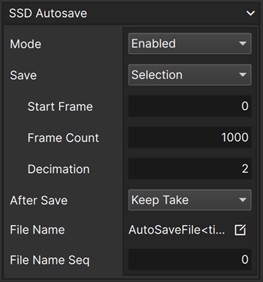
| Autosave fields | Description |
|---|---|
| Mode | Enable or disable autosaving |
| Save | Selects the method of defining the range of frames to save |
| Start Frame | Start frame of the save range when using the Selection option |
| Frame Count | Number of frames to save when using the Selection option |
| Decimation | Saves every nth frame when using the Selection option |
| After Save | Option to Keep or Delete the Take following the autosave operation |
| File Name | Desired file name format for autosaved files |
| File Name Sequence | Allows manual override of file name sequence number |
Save Range Options
| Option | Save Range |
|---|---|
| All frames | Saves all frames of the Take |
| Selection | Saves a selection of frames defined by the Start Frame, Frame Count, and Decimation fields |
Edit File Name Button
To edit the file name, click the Edit File Name  button.
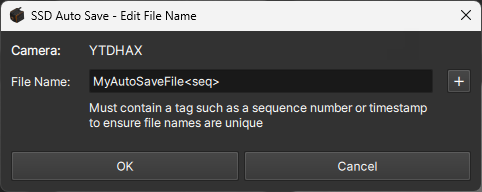
The displayed dialog box provides a text field to define the desired file name. A file name tag such as a sequence number
or timestamp is required to ensure file names are unique. Tags can be inserted by clicking the
button.
The displayed dialog box provides a text field to define the desired file name. A file name tag such as a sequence number
or timestamp is required to ensure file names are unique. Tags can be inserted by clicking the
 button, or by typing them in manually.
tip
Additional Syntax : The # of digits in the sequence number can be set by adding a semicolon followed by the sequence start number '<seq:n>', where n is the desired number of digits.
Ex : <seq:4> would result in a sequence #s: 0000, 0001, 0002, etc...