Batch Save
The Batch Save dialog is used for performing a save of multiple Takes, SSD Takes, or SLOW Files with a single operation.
Takes
To perform a batch save of all recorded Takes from a Camera's frame buffer, select Save All Takes... from the File Menu, or from a Camera object's context menu in the Navigation Pane.
SSD Takes
To perform a batch save of all open SSD Takes from a Camera, select Save All SSD Takes... from the File Menu, or from a Camera object's context menu in the Navigation Pane.
SLOW Files
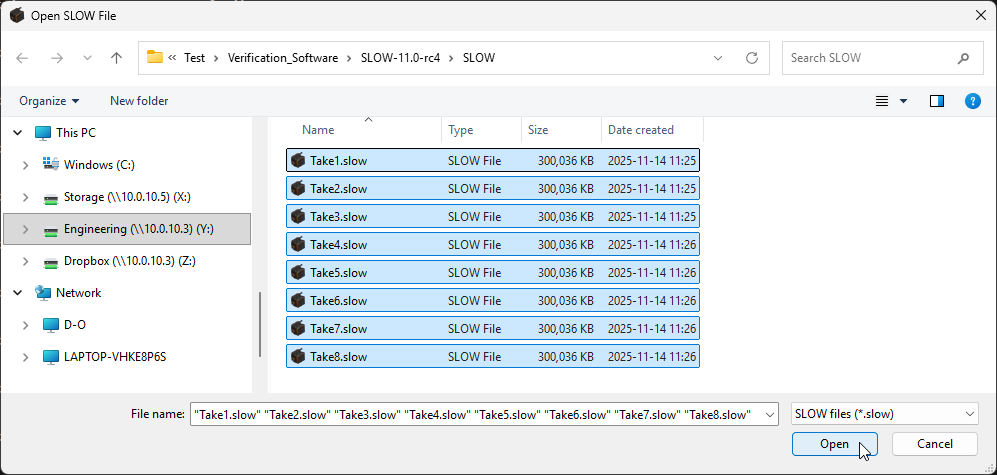
To perform a batch save of SLOW Files, select Batch Save SLOW Files... from the File Menu.
Next, multi-select files as you normally would in your operating system's file browser and click Open.
Source
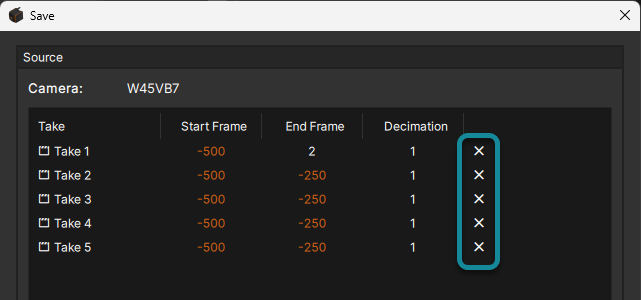
Displays a list of the source Takes, SSD Takes, or SLOW files and allows users to define the save range of each to be saved.
Save Range Fields
| Field | Description |
|---|---|
| Start Frame | Start frame of the save range |
| End Frame | End frame of the save range |
| Decimation | Saves every nth frame. If the source was previously decimated, the amount of previous decimation is displayed to the right of the field |
The desired save range for each item can be edited by clicking on any of the fields.
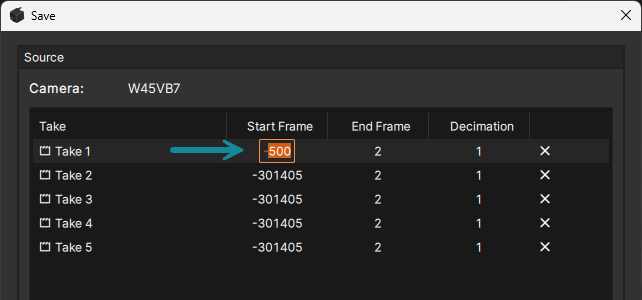
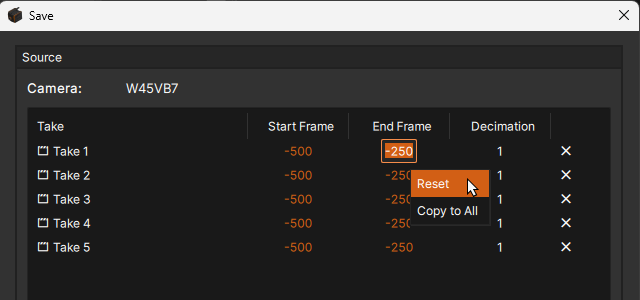
The Start / End Frame and Decimation fields highlight in orange when modified from the original values of the source.
Values can be quickly reverted by right-clicking the field and selecting Reset.
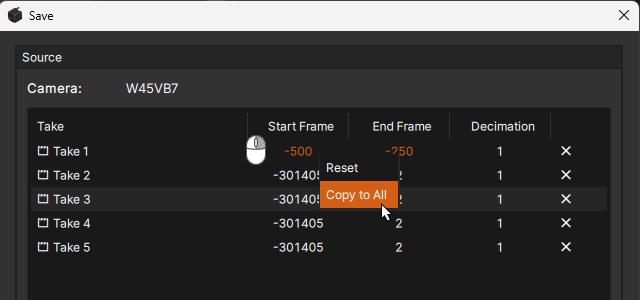
After adjusting the Start Frame, End Frame, or Decimation for an item, the value can be applied to multiple items by right-clicking on the desired number, and selecting Copy to All.
Items can also be removed from the list using the X button to the right of the row.
Destination, Format, Etc.
The Destination and Format options, as well as the Save & Repeat function are common with the normal Save dialog.